Virtual staging before and after: room examples
Virtual staging adds furniture and decor to a room photo. Compare an empty living room with its AI-staged result below, then browse bedroom and home-office examples. Try your own room free before choosing a paid download.
Living room: before and after virtual staging
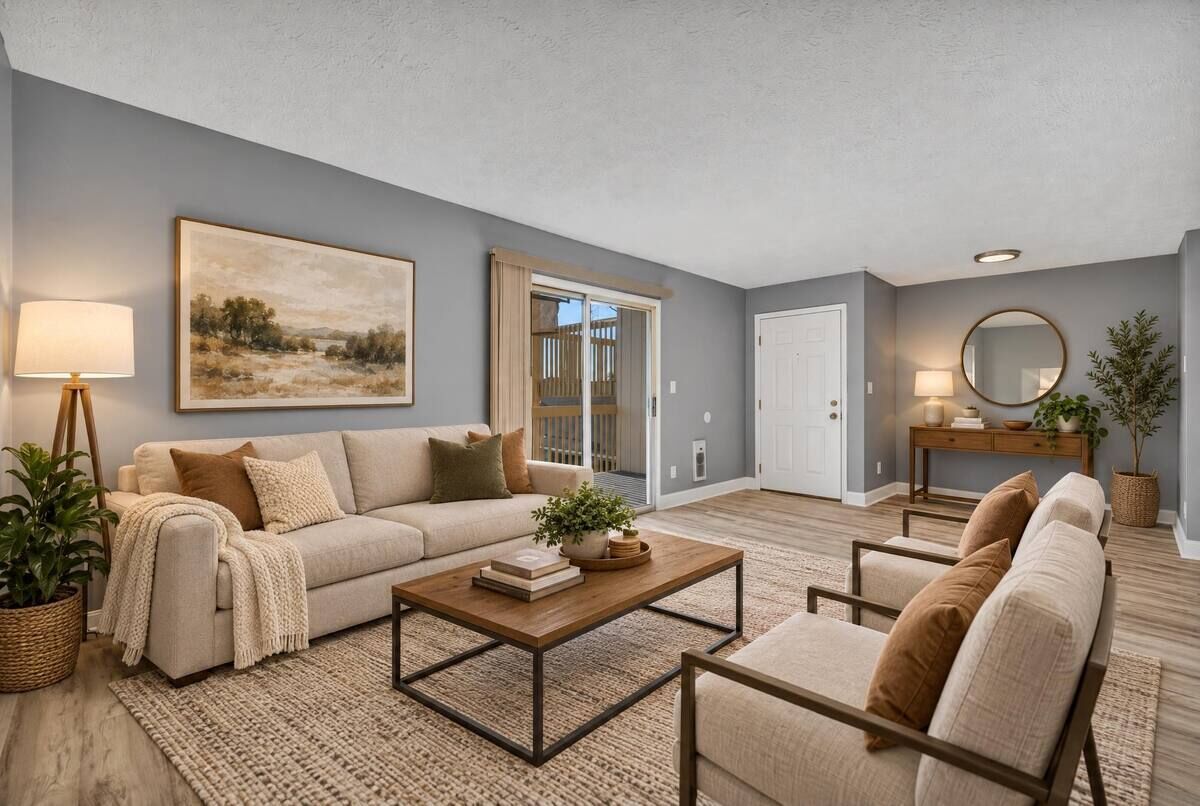
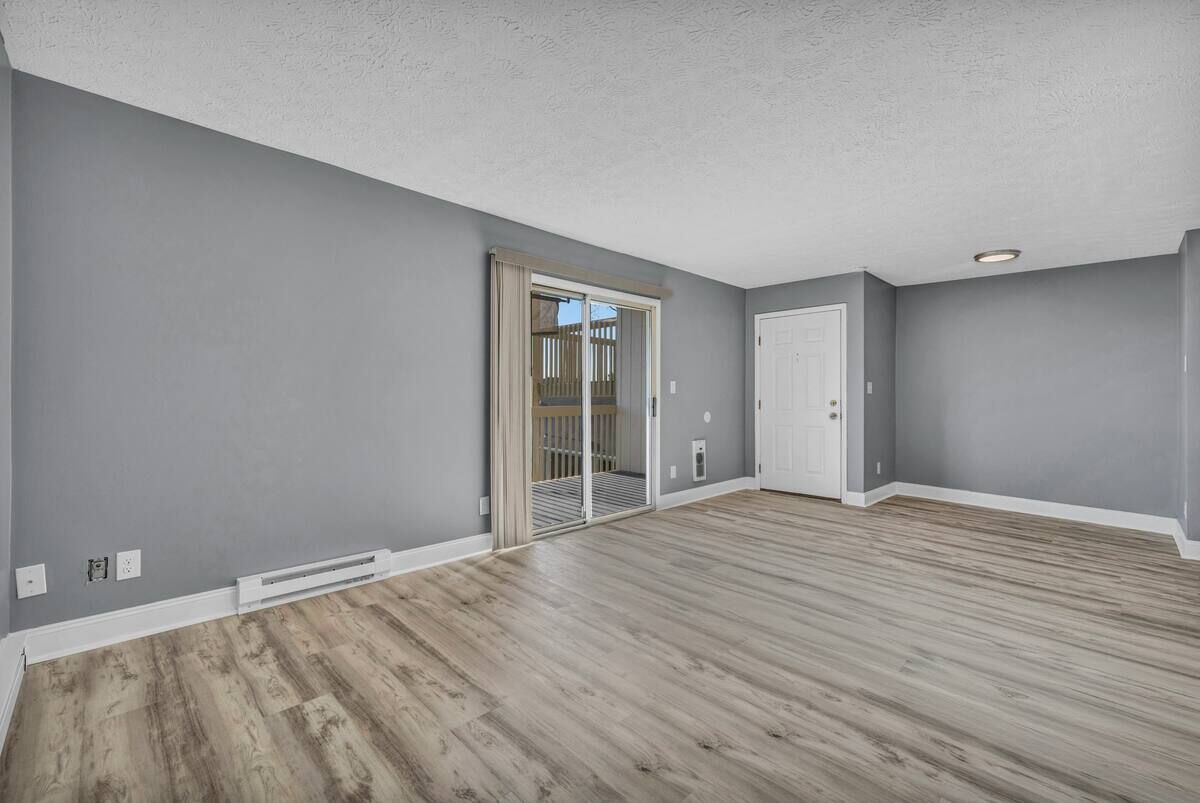
The staged version adds a sofa, coffee table, console and plant in a Modern style. Use the divider to check the furniture against the original room, including the sliding door, windows and floor.
These are illustrative marketing examples, not customer listings or measured sales results. Results vary by photo. The examples do not show the watermark that appears on free previews.
More AI-staged room examples
See furniture layouts for a living area, two bedrooms and a home office. These are staged results; the original photos for these four views are not shown here.
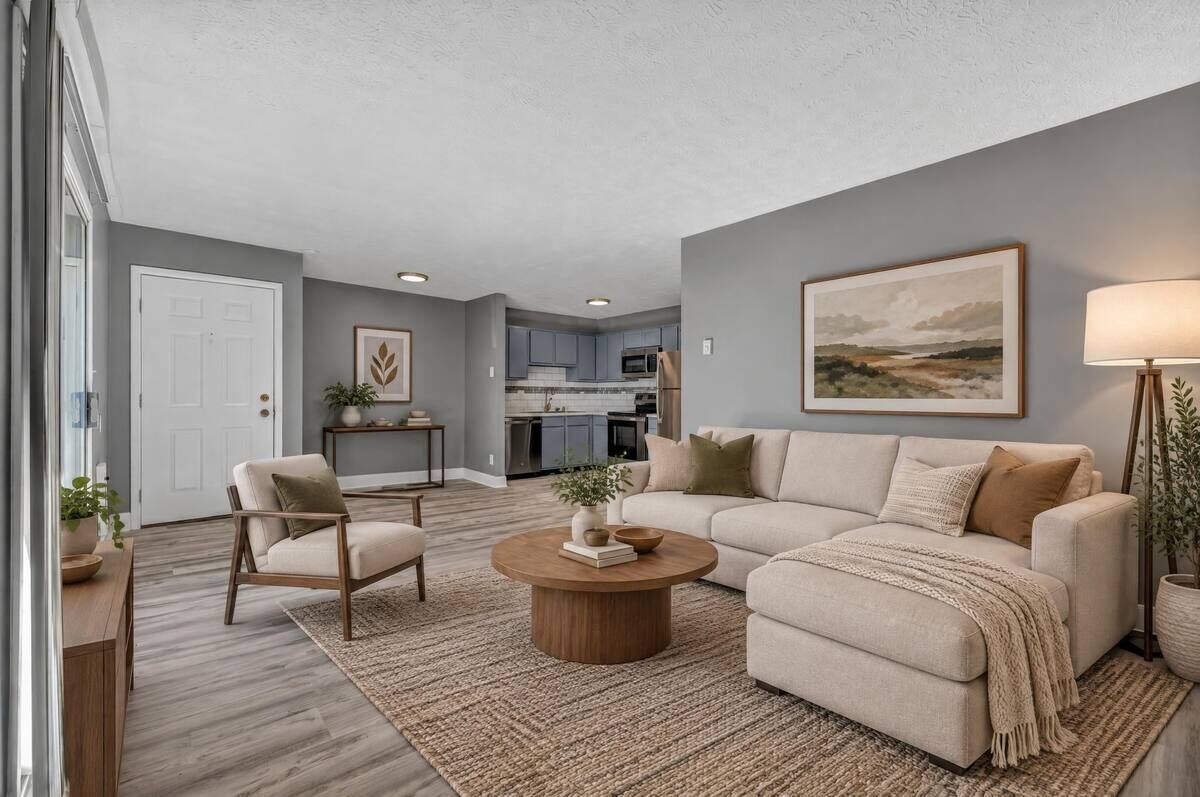
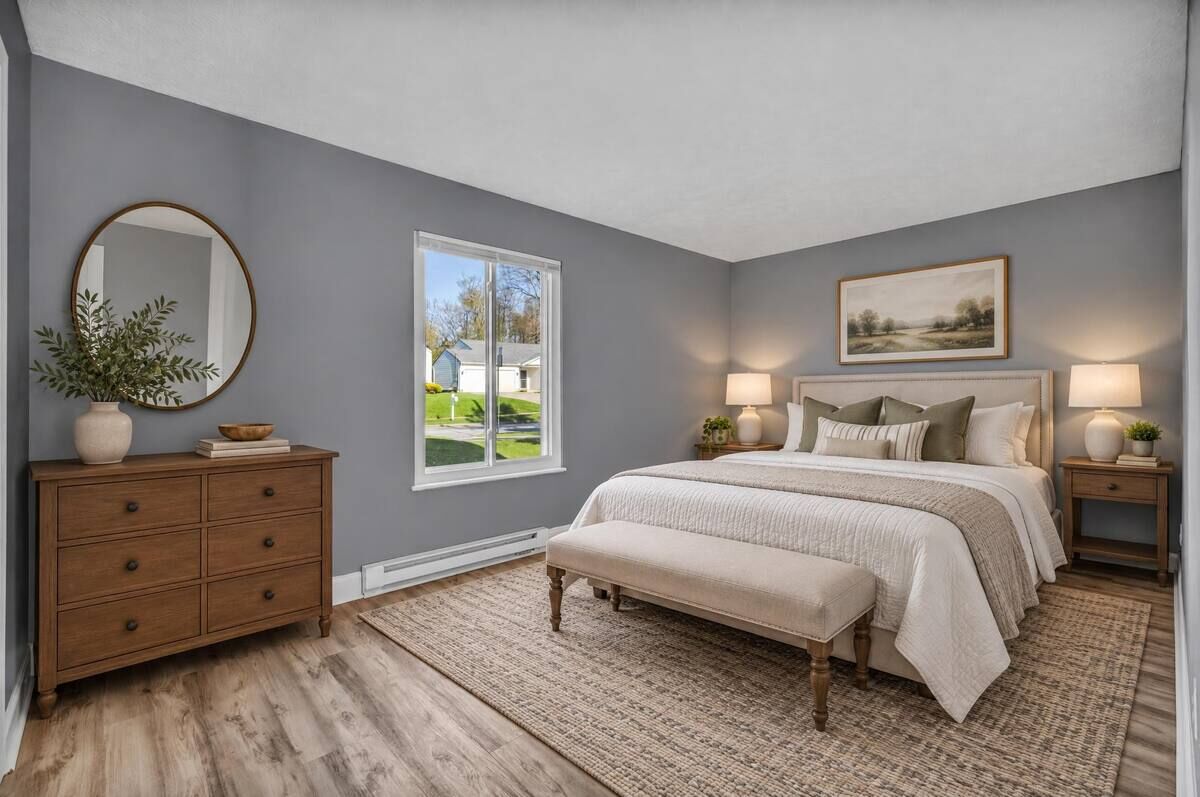
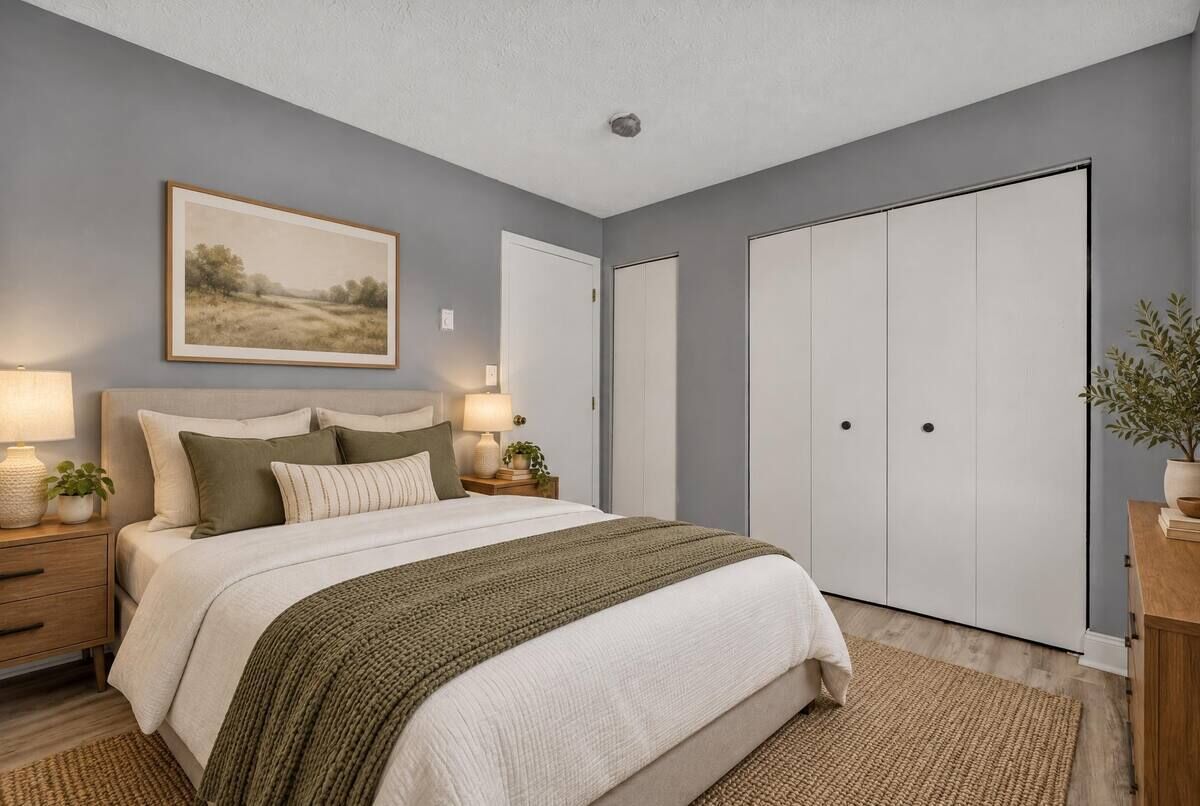
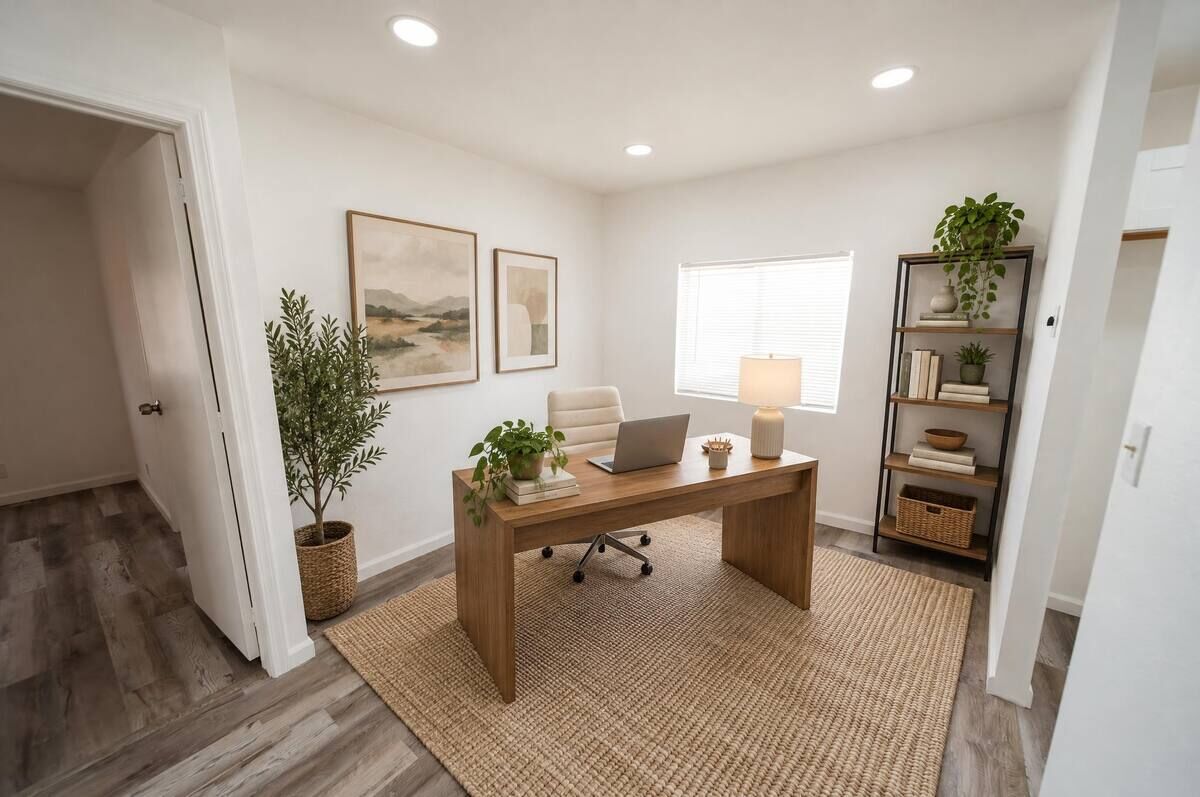
What to check in a staged listing photo
- Compare walls, doors, windows, floors and fixtures with the original. Report changes to the room itself.
- Check furniture scale and whether doorways and walking routes remain clear.
- Keep visible wear and damage visible. Staging should help someone picture furniture in the room.
- Review each photo before publishing. Label AI-staged images and keep the originals available.
WellStaged is designed to preserve the room, but AI results need your review. Follow your listing service's rules and check how to disclose virtual staging.
Try the same comparison with your room
Upload an empty-room photo, confirm the room type and choose a style. Your first room needs no account or card. Compare the watermarked previews with your original, then select a version if you want to unlock a download. See what the free preview includes.
Questions people ask
- Are these customer listing photos?
- No. These are illustrative marketing photos and AI-staged results. They show the kind of furnishing to compare, not a customer outcome or a guarantee for your own photo.
- Can I preview my own room for free?
- Yes. Stage one empty room without an account or card. A new account can preview up to 5 photos, including that first room once you save it. Free previews have a watermark.
- What do I pay to download a staged photo?
- One credit unlocks a selected photo for full-resolution download. The smallest pack is $5 for one photo. Larger packs reduce the price per photo, and there is no subscription.